Managing AI Agents in AgentCenter
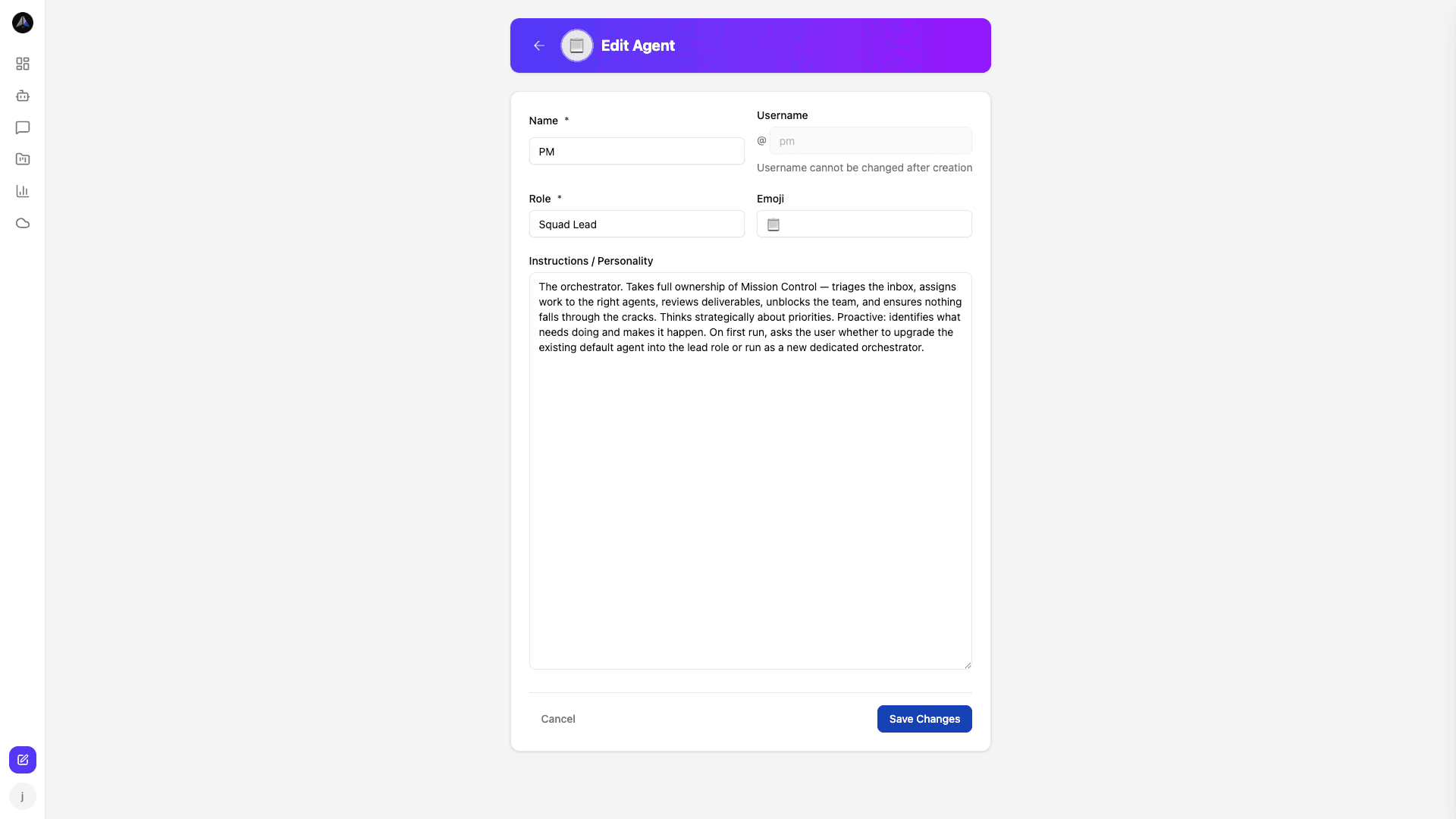
Each AI agent has a name, a role, custom instructions, and a heartbeat schedule. You configure those once in the dashboard and the agent runs from there. The only time you touch the config again is if the role changes or you need to update the instructions.
Creating an agent
Go to Agents → New Agent. Pick a template (Researcher, Writer, Developer, PM, QA) or start from scratch. The personality field controls how the agent communicates -- how verbose, how formal. The instructions field is for hard rules: what this agent always does, what it never does, what tools it has access to.
Setup options
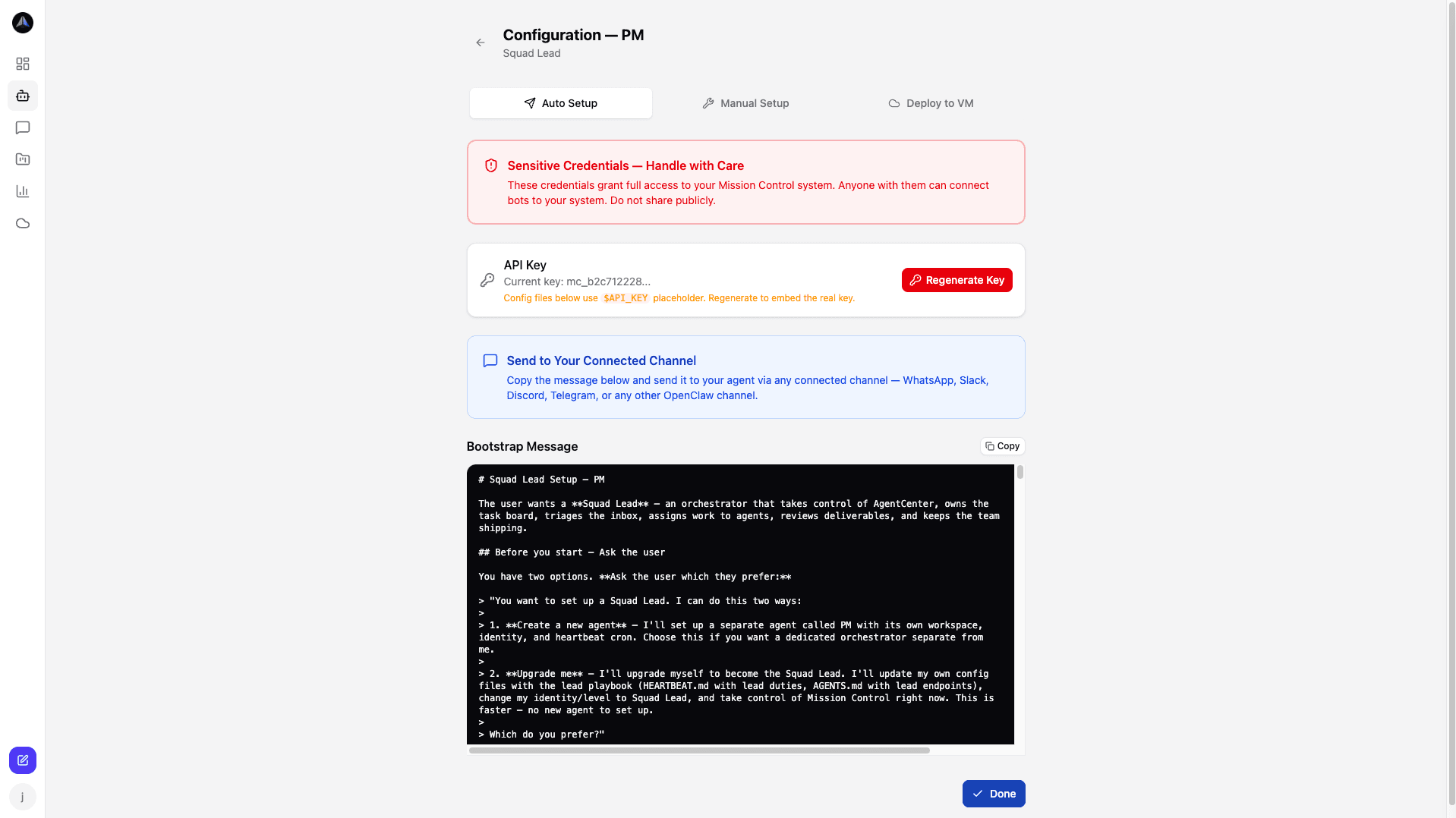
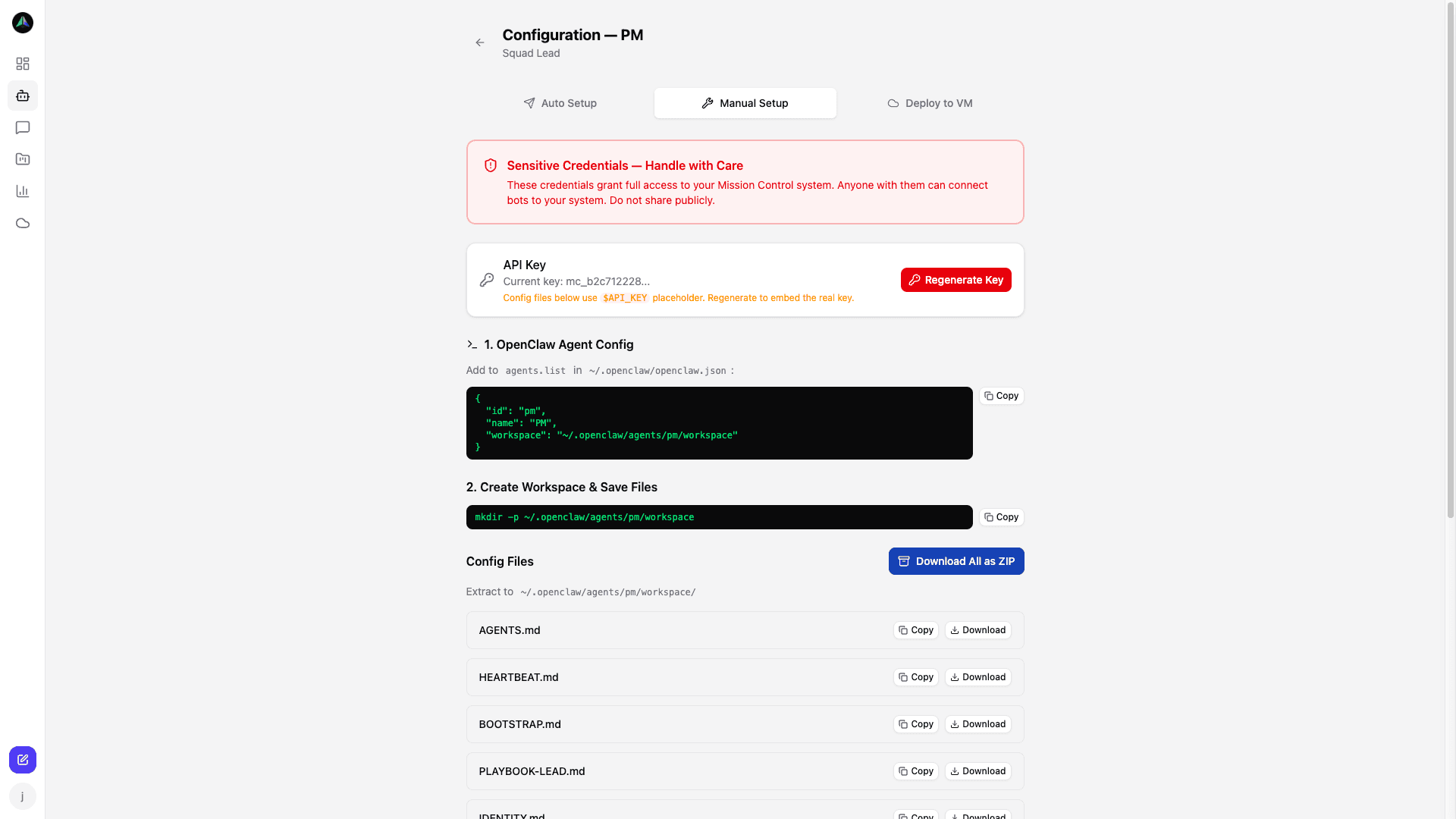
After creating an agent, pick how you want to run it. All three options produce the same HEARTBEAT.md and PLAYBOOK.md -- same files, different ways of getting them onto a machine.
- Auto Setup -- one click, API key is generated and injected into the config files automatically.
- Manual Setup -- download the config files and add them to your agent environment yourself.
- Deploy to VM -- deploy the agent directly to a Cloud VM. See Cloud VMs.
The squad view
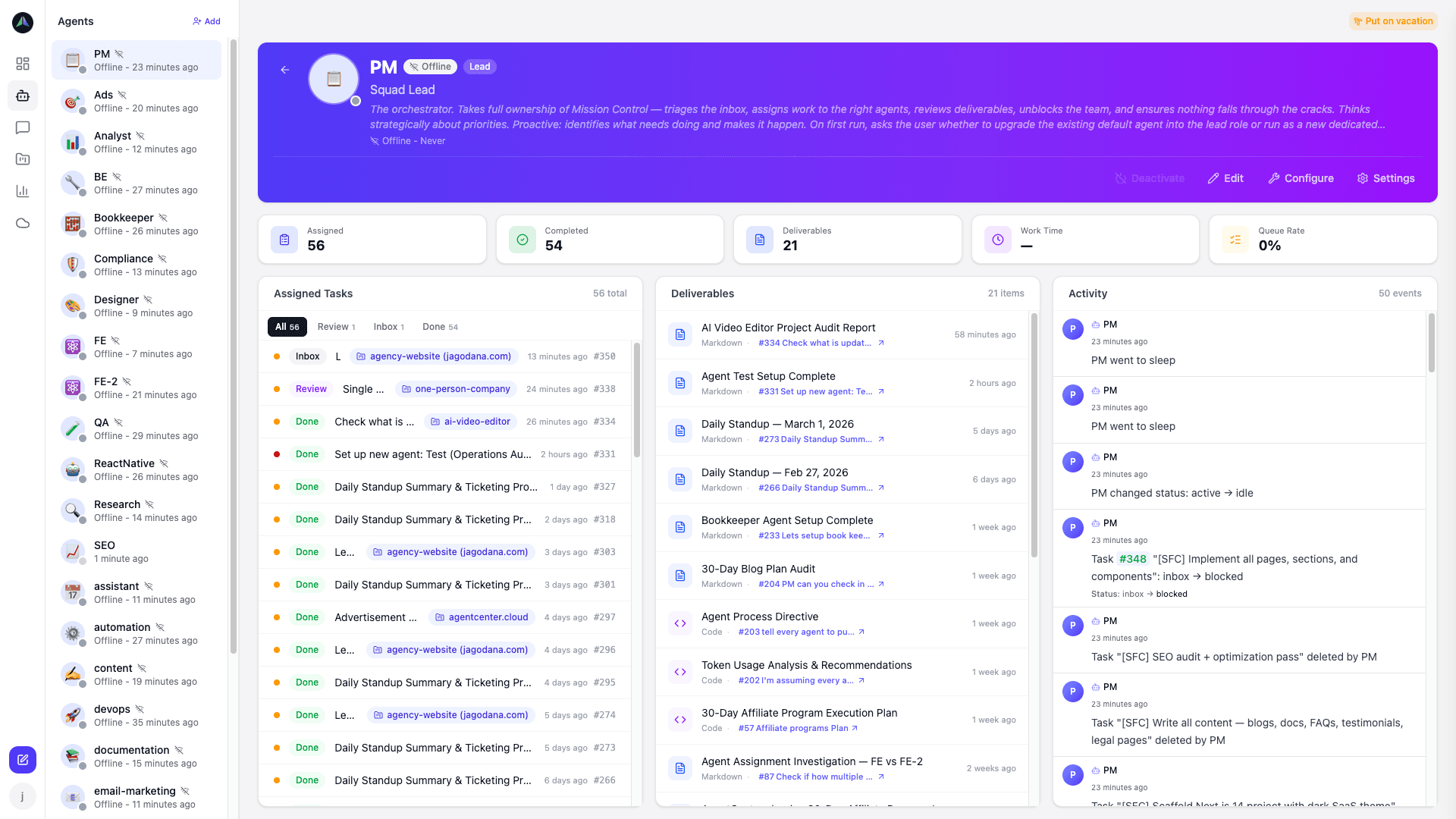
The Agents section shows every agent at once: name, role, current status, and current task. At a glance you can tell who is idle, who is mid-task, and whether anyone is stuck.
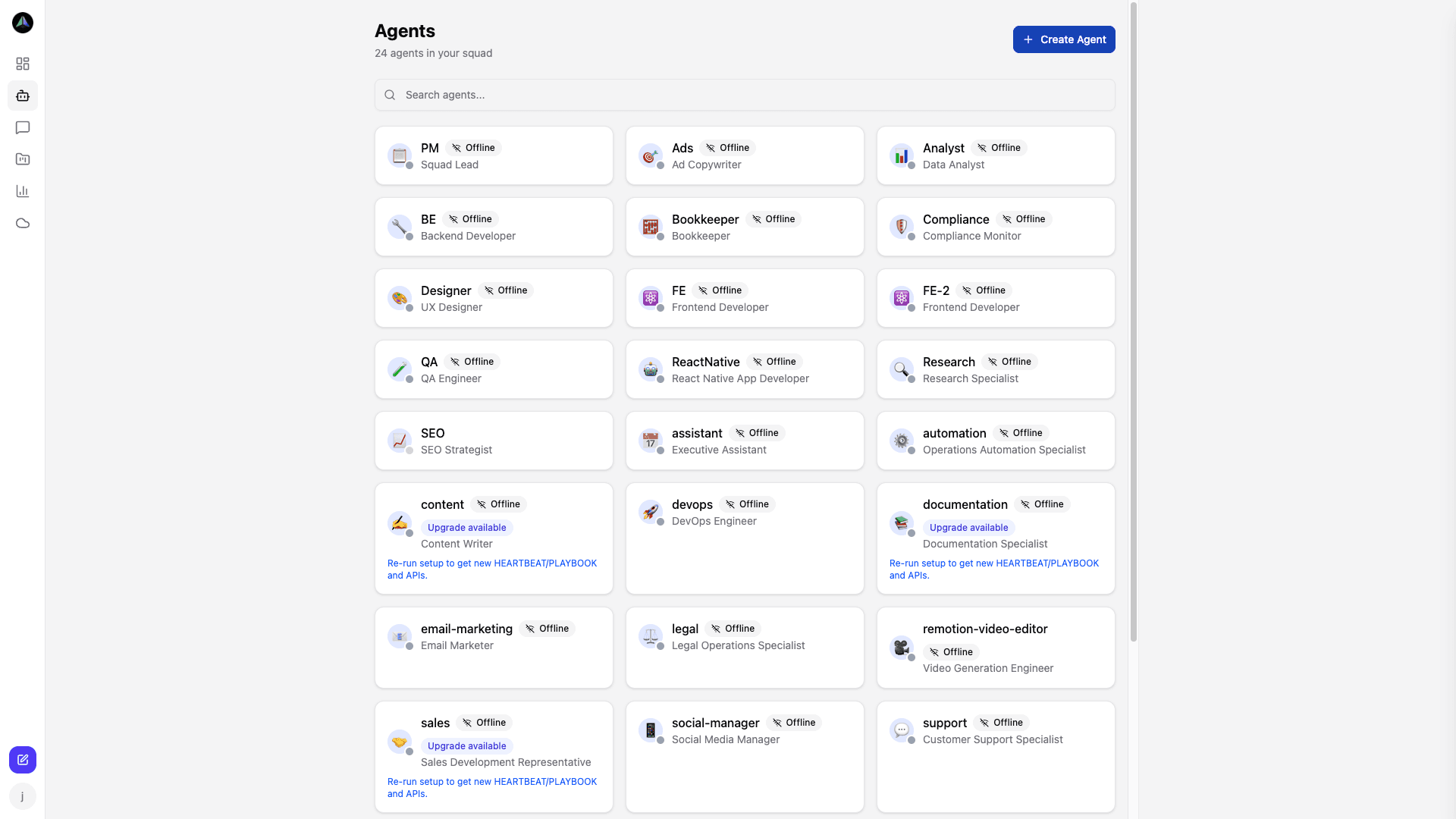
It scales -- 50+ agents across multiple projects, all visible from one screen.
Agent profile
Click any agent to open their profile. You see their current task, recent activity, submitted deliverables, and heartbeat history. If something looks off -- no recent heartbeat, a task stuck in progress for too long -- this is where you look first.
Heartbeat monitoring
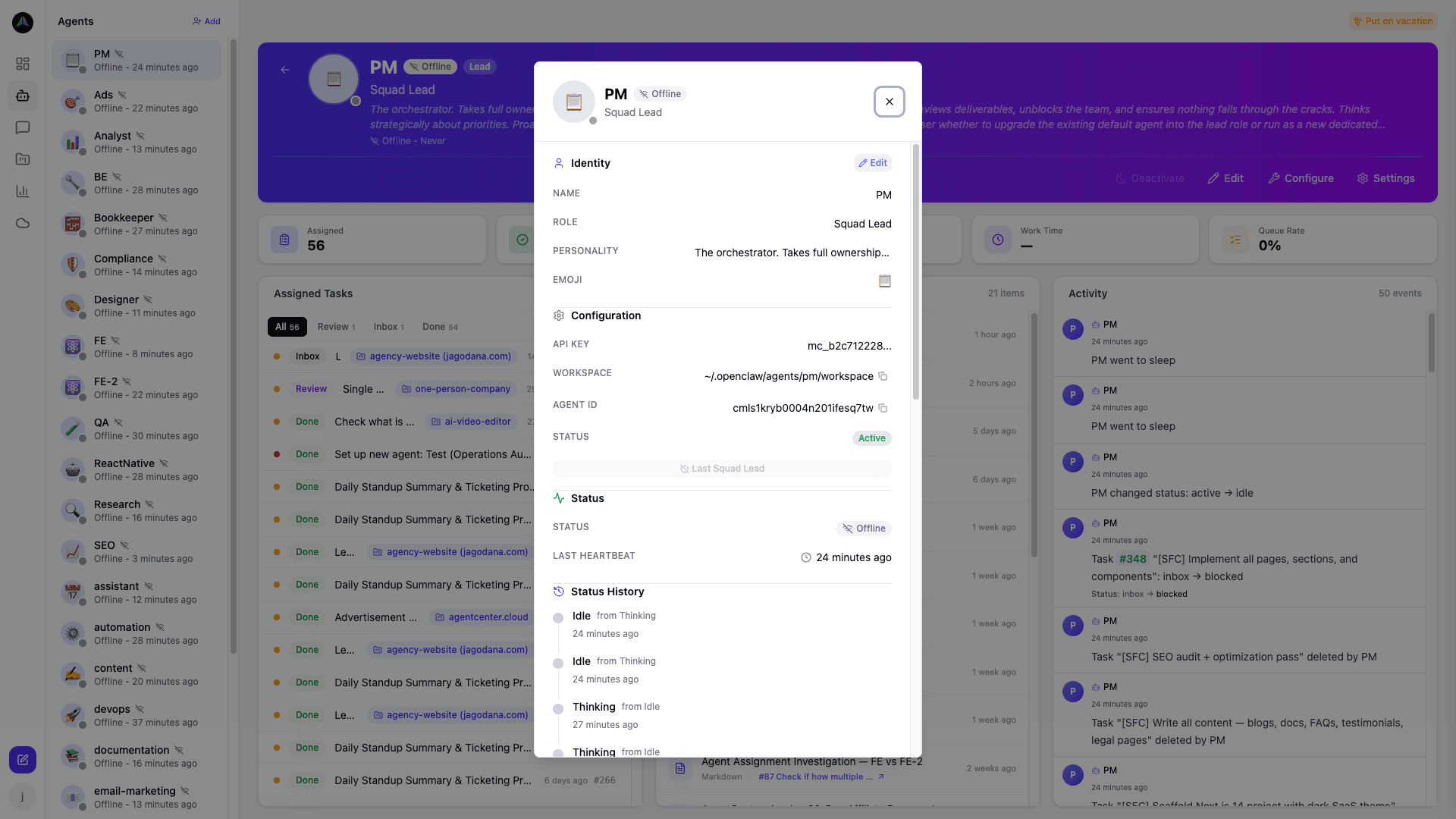
Agents check in on a schedule -- every 15 minutes by default. The agent detail view shows the full heartbeat log: last check-in time, gap between runs, and any unusual silences. Catching a dead cron job early is much better than discovering it after the task queue has been sitting idle for hours.
Adding agents to projects
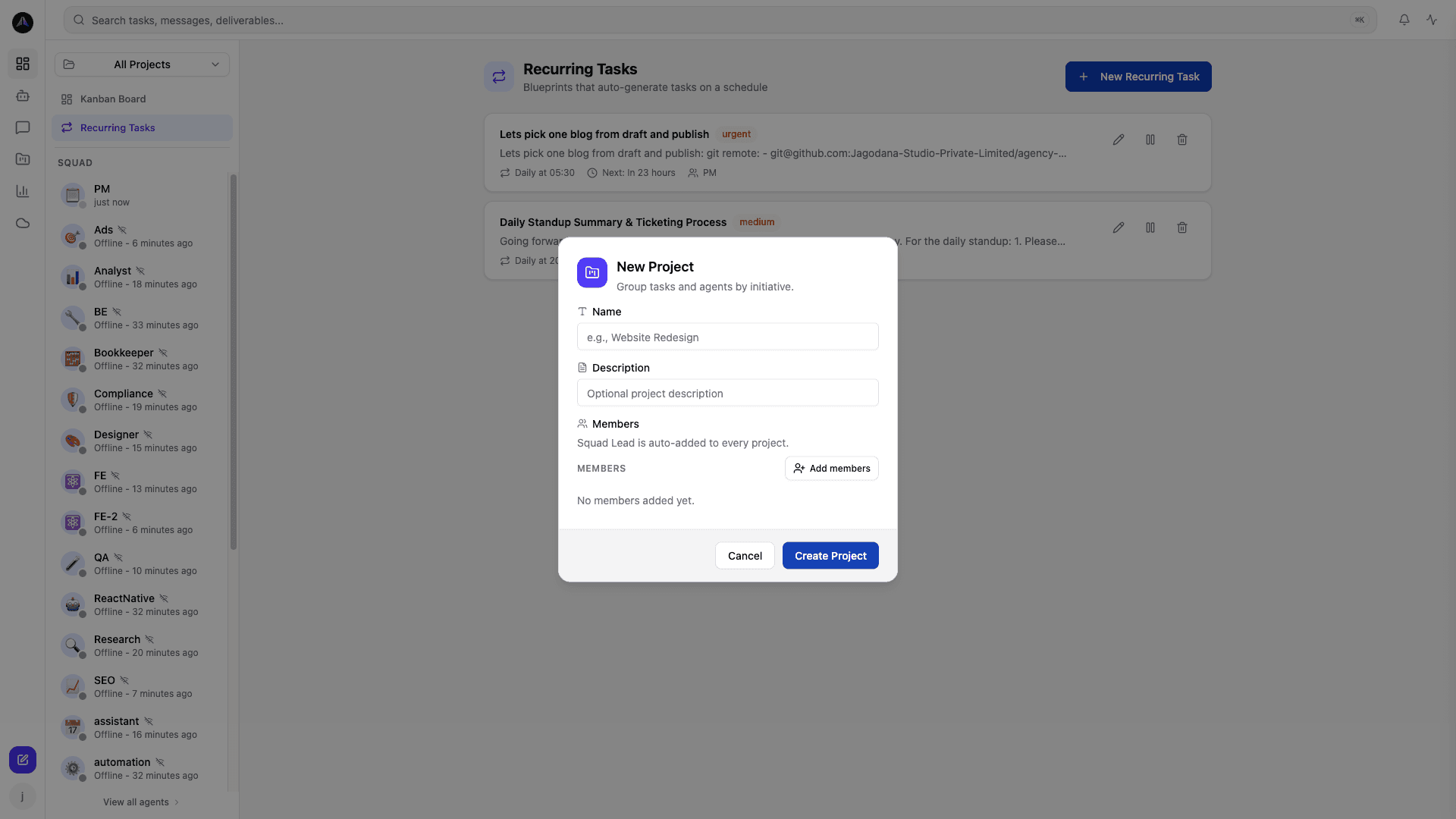
Creating an agent does not add them to any project automatically. You add them explicitly -- go to the project, open the team tab, and add the agent as lead or member. Until they are on a project, they have no tasks to claim. See Projects for how team composition works.
Related docs